
Payment Gateways We Support
Stripe and PayPal on every plan, every processor on Business and Scale, plus Zelle and bank wire.
InvoiceLaunch integrates with multiple payment gateways so you can choose the processor that works best for your business. Your clients can pay via credit card, PayPal, and other methods depending on which gateways you configure.
Supported Payment Methods
- Stripe: Card payments into your own Stripe account.
- PayPal: PayPal and card payments into your own PayPal account.
- Square: Card payments through your own Square account.
- Authorize.Net: Card payments through your own Authorize.Net account.
- Braintree: Card payments through your own Braintree account.
- Adyen (available on request): Card payments through your own Adyen account.
- Razorpay (available on request): Payments through your own Razorpay account.
- Flutterwave (available on request): Payments through your own Flutterwave account.
- Coinbase Business (available on request): USDC payments through your own Coinbase Business account. You need a business based in the US or Singapore.
- Zelle: Your Zelle details and a QR code on the invoice. You mark the invoice paid when the money arrives.
- Bank Wire Transfer: Your bank details on the invoice. You mark the invoice paid when the money arrives.
Which Plans Include Which Methods
- Starter: Stripe and PayPal, plus Zelle and bank wire.
- Business and Scale: Every processor above, plus Zelle and bank wire.
Adyen, Razorpay, Flutterwave and Coinbase Business are available on request. They don't show in your account until we turn one on for you. To ask, use the contact form and say which one you need.
Which card brands and wallets your clients see depends on how your own processor account is set up.
How to Configure a Payment Gateway
- Open Payment Methods from the sidebar to view your Payment Gateways
- Click Add Gateway
- Select your preferred payment processor
- Enter your API credentials (from your gateway's dashboard) and click Configure
- Click Test Connection to verify the setup
- Set the gateway to Active
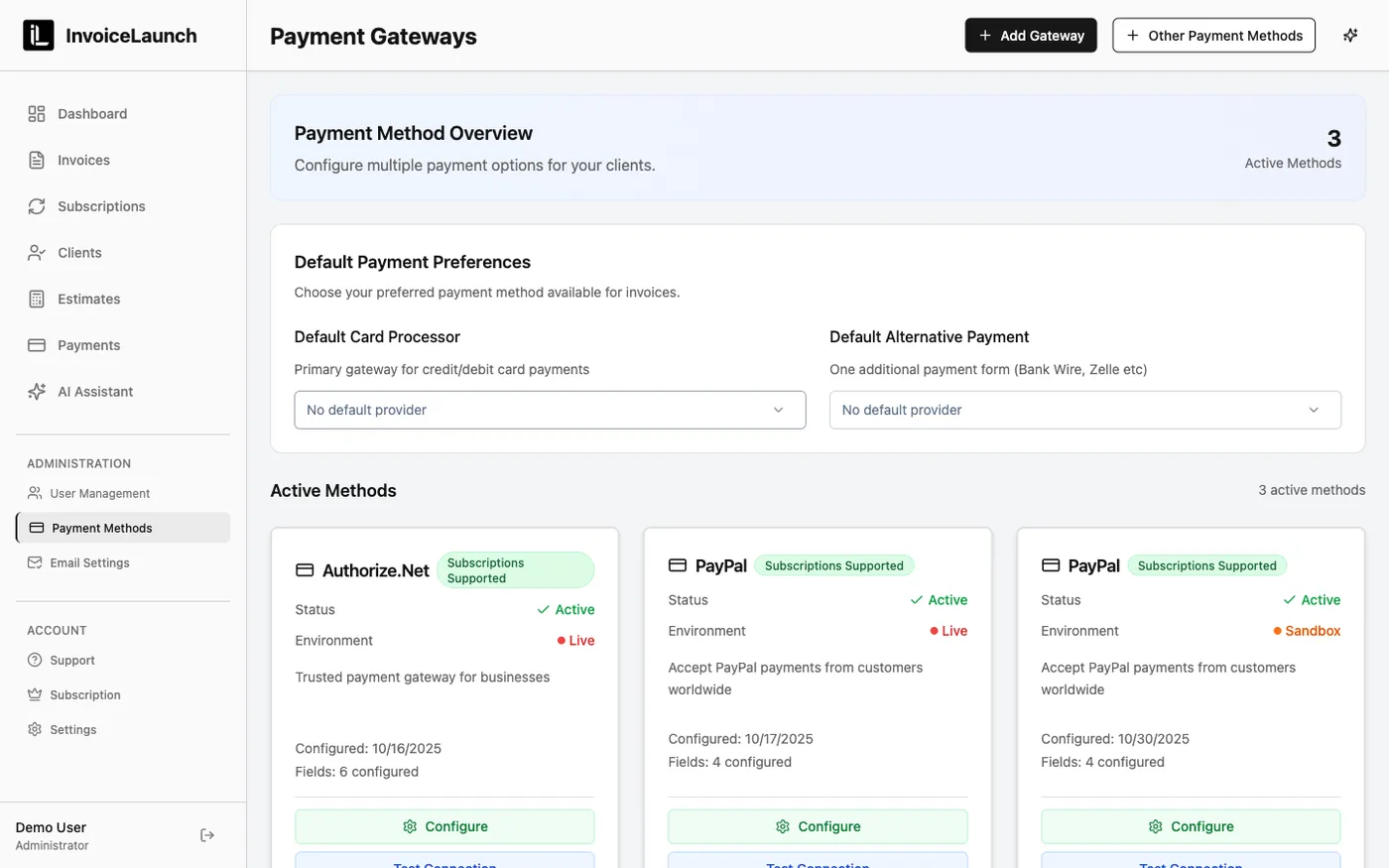
Once active, you can also choose a default card processor and an alternative payment method so the right options appear on every invoice.
Payment Processing Fees
Processing fees vary by gateway and are set by each payment processor, not InvoiceLaunch. Typical rates:
- Credit Cards: 2.4% – 2.9% + $0.30 per transaction
- PayPal: 2.9% + $0.30 per transaction
Check your gateway's pricing page for exact rates. InvoiceLaunch adds no fee on top.
When Clients Pay
- Client clicks "Pay Invoice" link in email or invoice PDF
- Secure payment page loads with your configured gateways
- Client selects a payment method and enters payment information
- Payment processes through your connected gateway
- Both you and the client receive confirmation emails
- Invoice status updates to "Paid" automatically
Multiple Gateways
You can configure multiple payment gateways and set a default. Your clients will see all active payment options when paying an invoice.
Security: All payment data is transmitted directly to your payment gateway using industry-standard encryption. InvoiceLaunch never stores full credit card numbers—your gateway handles all sensitive payment data securely.